
Motion Graphics Tools in 2026: From Beginner to Pro
A short map of popular motion graphics tools, from Canva and CapCut for beginners to After Effects, Blender, Rive and Remotion for more serious work.
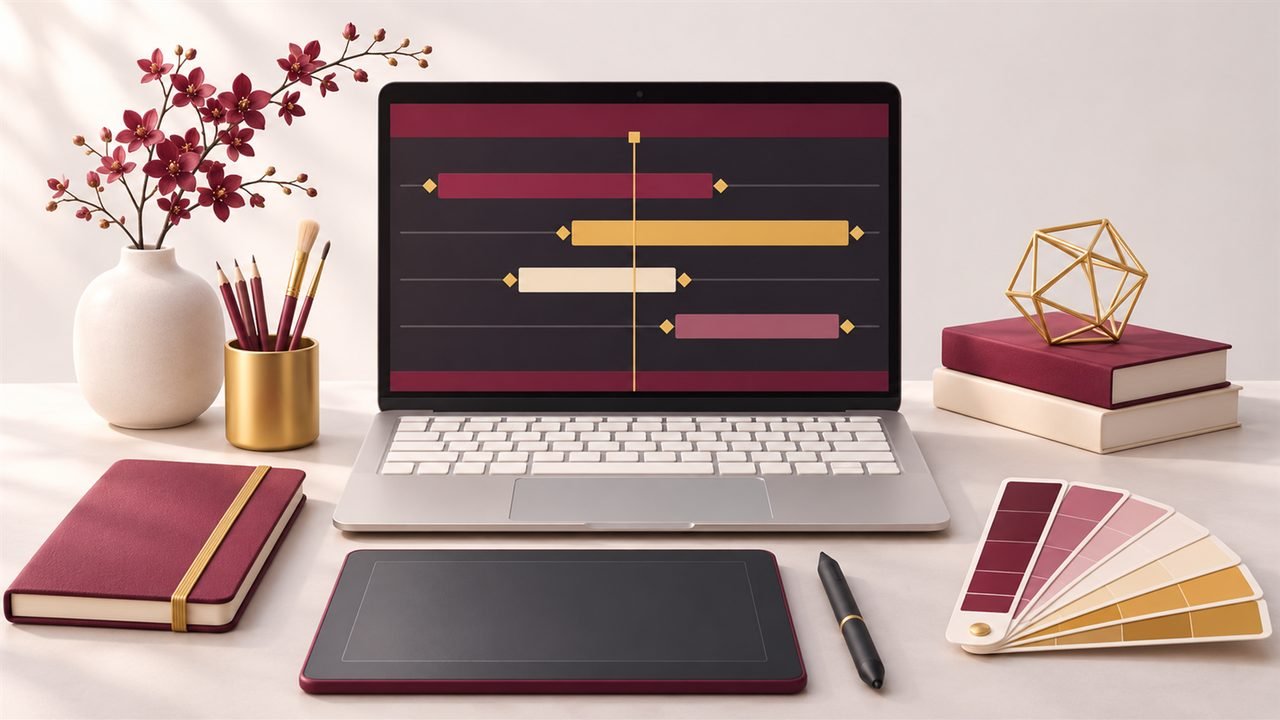
A question I often get: "Which app should I learn motion graphics with?" The honest answer is, it depends on what you want to make. There is no single best tool for everyone.
In this article I map popular motion graphics tools by need. I don't list prices or versions because both change often. Before deciding, always check each official page for the latest plans and licenses.
For beginners: quick results, low learning curve
Canva
Canva is known as a browser-based design tool, but it also has animation and video features. You can use templates, add entrance animations to text and elements, then export as video.
Good for: quick social media content, animated presentations, and people who have never touched a timeline.
Limitations: motion control is more limited than in dedicated animation tools. Start with our Canva motion graphics guide for beginners.
CapCut
CapCut is a video editor available on phones and computers. Besides cutting clips, CapCut has keyframes, text templates, effects, and automatic captions.
Good for: short Reels and TikTok videos that mix footage with moving text.
Limitations: for complex, precise graphic animation, you will quickly feel limited. Try it with our CapCut motion graphics tutorial.
Jitter
Jitter is a browser-based motion design tool that feels like an interface design tool. You arrange elements on a canvas, then animate them with a simple timeline.
Good for: UI animation, animated app mockups, and social content with a clean style.
For intermediate to professional
Adobe After Effects
After Effects has long been the industry standard for 2D motion graphics. Its features are complete: keyframes, a graph editor to control easing, masking, effects, expressions for automation, and a large plugin ecosystem.
Good for: almost every kind of professional motion graphic, from ads to title animation.
Things to note: the learning curve is fairly steep, and you need a capable computer.
Blender
Blender is free, open-source 3D software. Besides 3D modeling and rendering, Blender has Grease Pencil for 2D animation and video editing features.
Good for: 3D motion graphics, product visuals, and anyone who wants professional tools with no license cost.
Things to note: its interface takes time to get used to, and 3D rendering can be heavy.
DaVinci Resolve with Fusion
DaVinci Resolve is video editing software that also covers color grading, audio, and the Fusion page for compositing and node-based motion graphics. Resolve has a free version and a paid version with extra features.
Good for: people who want editing, color, and motion graphics in one app.
Things to note: the node-based way of working in Fusion feels different from a layered timeline, so it takes adjustment.
For web and apps
Rive
Rive is a tool for making interactive animation that can be used on websites, apps, and games. Its strength is the state machine, meaning animation that can react to input like clicks, hover, or data changes.
Good for: animated buttons, interactive mascots, and interface animation.
LottieFiles
Lottie is a JSON-based animation format that is light for web and apps. LottieFiles is the platform around that format: a place to find, edit, and export animations. A full explanation is in the article Lottie: lightweight animation for websites.
Good for: moving icons, loading illustrations, and small animations on websites.
For developers: video with code
Remotion
Remotion lets you make video with React. Animation is written as components, then rendered into a video file. Its strength is in templates and automation: one component can produce many videos with different data.
Good for: developers, repeated videos with the same format, and videos whose data comes from code.
Things to note: there are special license terms for companies, so check the official license page. A getting-started guide is in Remotion Basics.
How to choose motion graphics tools
A few questions that help:
- What is the final output? Video for social media, animation on a website, or 3D visuals?
- How often? If you often make videos with the same format, tools that support templates or code will save a lot of time.
- What device? Some tools need a fairly strong computer. Others run in a browser or on a phone. Our laptop for video editing buying guide helps if you need an upgrade.
- What is your budget? There are very capable free options, like Blender and the free version of DaVinci Resolve.
- What is your background? Designers are usually quickly comfortable in After Effects or Jitter. Developers are often happier in Remotion.
I use a combination myself. Remotion for repeated video templates, a video editor for footage, and browser-based tools for quick needs.
Final thoughts
Tools are just tools. The principles of timing, composition, and readability stay the same in any app. Pick one tool that fits your needs now, master the basics, then add other tools if you really need them. Switching apps too often actually slows down learning.
Sources
Read next
 NEW
Pantone Color of the Year 2027: Reveal Date and How to Use It
When is the Pantone Color of the Year 2027 revealed, what Cloud Dancer taught us, and a fast plan to build palettes and motion templates around the new colour.
Read more
 NEW
Snapchat Lenses With Claude Code and Cursor: A Starter Guide
Build Snapchat Lenses with Claude Code, Cursor or Codex using Snap's new Easy Lens CLI. What it does, how to start, prompt templates and mistakes to avoid.
Read more
 NEW
Frutiger Aero Aesthetic: How to Design the Glossy 2000s Look
The Frutiger Aero aesthetic is back. Learn its colours, gradients, type and motion, and rebuild the glossy 2000s look in Canva, CapCut or After Effects.
Read more