
Makeup Loading Percentage Trend: How to Film It in CapCut
The makeup loading percentage trend step by step: a shot list, CapCut text overlay settings and non-beauty versions for food, room and outfit makeovers.
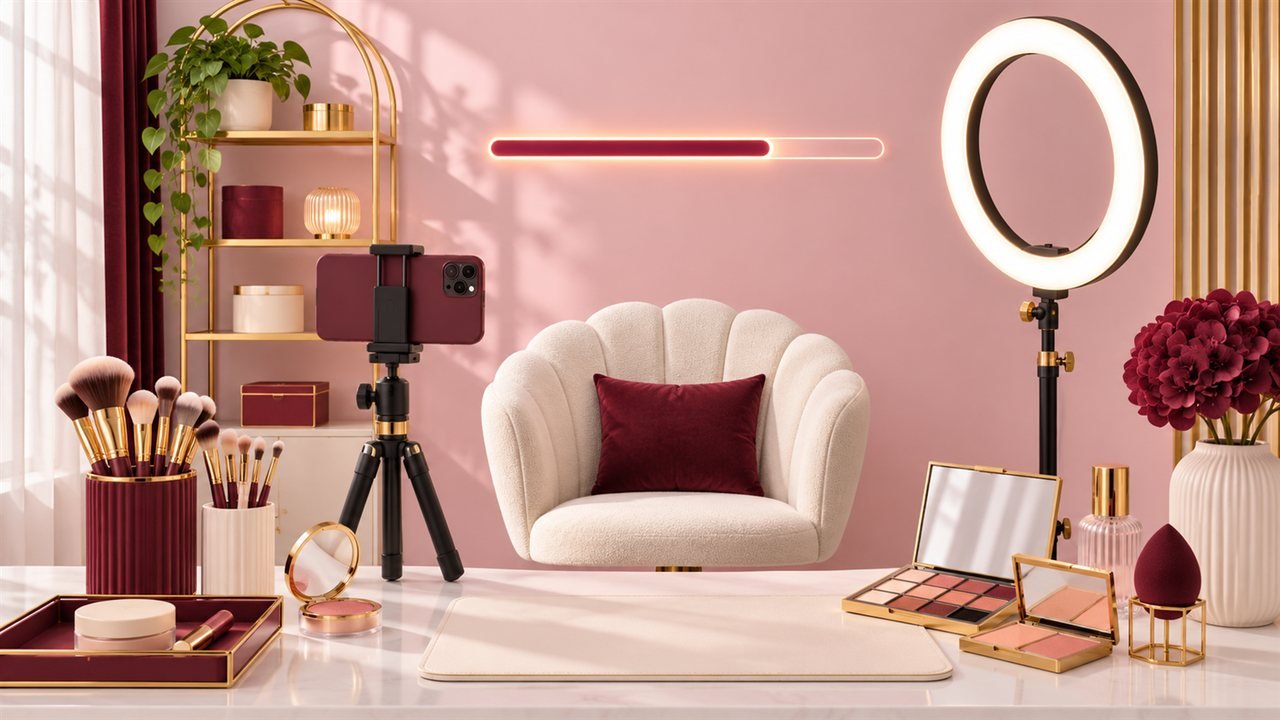
The makeup loading percentage trend turns a getting-ready routine into a progress bar: bare face at 0%, finished look at 100%. This guide gives you a shot list, the CapCut steps for the percentage overlays, timing tips and versions that work for food, rooms and outfits if beauty is not your niche.
What is the makeup loading percentage trend?
Virlo, a trend tracking site, describes the "Makeup Loading Percentage Transition" as a TikTok format that starts with a bare-faced shot and a "0%" overlay, then moves through the stages of a beauty routine with rising percentage overlays until the finished look appears at 100%.
Here is what Virlo's data shows:
- Stage: peaking, as of 20 November 2026.
- Views: about 40.3 million in Virlo's scan.
- Videos: Virlo's November 2026 trend list counts 661 videos from 647 creators, first seen on 22 September 2026, ranking it #6 in its top 10 for the month.
- Audio: "original sound - saffknight".
- Momentum: 15 creators posted it in the last seven days, down from 20 the week before.
- Business fit: Virlo rates it a yes for consumer brands and local businesses such as salons.
Peaking with slightly fewer new posts per week means the format is well known but not yet stale. It is a good moment to post a polished or creative version.
Virlo also lists related loading formats in November 2026, such as "0 to 100 Percent Loading Transformation" and "Halloween Costume Loading Reveal", which shows the idea travels beyond makeup.
Why the format works
- Built-in progress. Viewers want to see 100%, so they stay.
- Easy to read without sound. The numbers tell the story.
- Shows skill honestly. Each step is visible, which builds trust for makeup artists and beauty affiliates.
- Flexible. Any before-and-after process can "load".
The shot list
Plan six to eight clips. Keep your phone in exactly the same position for every shot so the transitions feel smooth.
- 0%: bare face, hair pulled back, neutral expression.
- 10 to 20%: skincare or primer.
- 30 to 40%: base (foundation, cushion or skin tint).
- 50 to 60%: concealer and powder.
- 70%: brows.
- 80%: eyes.
- 90%: lips and blush.
- 100%: hair done, full look, a small pose or smile.
Filming tips
- Lock the phone. Use a tripod or stand at eye level. Mark the spot on the floor where you sit.
- Use the same light every time. Daylight from a window changes fast; a ring light keeps every clip consistent.
- Same framing, same distance. Your face should stay in the same part of the frame so the cut feels like a jump in time.
- Record a second or two per stage. The format moves fast. You can trim later.
- Save your best expression for 100%. It is your payoff frame.
How to add the percentage overlays in CapCut
CapCut's own guide on adding text describes the core workflow: open Text, add a text element or template, replace the sample wording and place it in the preview. On desktop, Text > Add text creates a separate text layer above your video. Here is how to use that for the loading effect.
Step 1: Assemble the clips
Import your clips in order on the timeline. Trim each to the length you want, roughly one to two seconds.
Step 2: Add the audio
The trend uses "original sound - saffknight" on TikTok. The easiest route is to edit your video without music in CapCut, then add the original sound inside TikTok when you post, so your video appears on that sound's page.
Step 3: Add the first overlay
Tap or click Text, add a text element and type "0%". Place it where it will not cover your face, such as the top centre or bottom of the frame.
Step 4: Match each overlay to its clip
Duplicate the text layer for each stage and change the number: 10%, 30%, 50% and so on up to 100%. CapCut's guide explains that you move a text clip on the timeline to change when it starts and drag its right edge to change how long it stays. Line each number up with its clip.
Step 5: Style it like a loading screen
- Use a bold, simple font and a high-contrast colour.
- Keep the same size and position for every number so it reads as one counter.
- Optional: add a word like "loading" above the number.
- If you use a text animation, CapCut's guide recommends making sure the entrance and exit leave enough time to read the label, or choosing a simpler style.
Step 6: Check visibility and export
If text disappears, CapCut suggests checking that the text layer sits above the video, and checking colour and opacity in the text panel. Then export and upload.
For more animated text ideas, our guide to kinetic typography and our tutorial on motion graphics on your phone with CapCut go deeper.
Timing guide
- Total length: short. Aim for the whole 0 to 100% to feel quick.
- Hold 0% slightly longer so viewers register the "before".
- Hold 100% the longest for the reveal.
- Cut on the beat of the sound when you add it on TikTok, using the app's alignment tools.
Non-beauty versions of the loading trend
You do not need makeup to use the percentage format. Keep the same structure: a clear 0%, visible steps, a satisfying 100%.
Food
- 0%: raw ingredients on the counter.
- 30%: chopping and prep.
- 60%: in the pan or oven.
- 100%: plated dish, steam rising.
Great for home cooks, food stalls and cafes.
Room makeover
- 0%: messy room or empty corner.
- 40%: cleaning and clearing.
- 70%: new furniture or decor going in.
- 100%: final cozy shot with the lights on.
Outfit
- 0%: pajamas or a plain base outfit.
- 50%: main pieces on.
- 80%: accessories and shoes.
- 100%: full look, walking towards the camera.
Small business
- Salon: hair from wash to finished style.
- Bakery: dough to decorated cake.
- Print shop or crafts: blank item to finished product.
- Desk setup: empty desk to full workstation.
Mistakes to avoid
- Moving the camera between shots. It breaks the illusion.
- Uneven numbers. Jumping from 10% to 90% with nothing between feels lazy.
- Text over the face. Viewers want to see the change.
- Using a re-uploaded sound. Use the original sound so you can be found on its page.
- Over-editing the final look with filters. For beauty content, viewers notice. Be honest about what is makeup and what is a filter.
If you work in beauty, our breakdown of the glass skin TikTok study has more context on what beauty audiences respond to.
Key takeaways
- The makeup loading percentage trend shows a routine from a 0% bare face to a 100% finished look with rising number overlays.
- Virlo rated it peaking on 20 November 2026, with about 40.3 million views and the "original sound - saffknight" audio.
- Lock your camera position and lighting for every shot so the transitions feel seamless.
- In CapCut, add text layers, duplicate them for each percentage and drag each one to match its clip.
- The same format works for food, rooms, outfits and small-business makeovers.
FAQ
What sound is used for the makeup loading trend?
Virlo lists "original sound - saffknight".
Can I do the loading percentage trend without makeup?
Yes. Food, room, outfit and product makeovers all work with the same 0% to 100% structure.
Do I need CapCut Pro for the overlays?
CapCut's text guide does not mention needing a paid plan to add text. Check your own app version, since features and plans change.
Sources
Read next
 NEW
Free Apps for Content Creators: Best Open-Source Stack for 2027
The best free apps for content creators for 2027: recording, screen capture, editing, audio, subtitles and thumbnails, all open source and watermark-free.
Read more
 NEW
Facebook Creator Fast Track: Guaranteed Pay for Moving Creators
Facebook Creator Fast Track pays established creators for three months to post Reels. Who qualifies, the posting rules, pay tiers and whether to repurpose.
Read more
 NEW
FFmpeg Skill: Edit Videos by Chatting With Your Coding Agent
The open-source FFmpeg skill gives Claude Code, Cursor or Codex 42 local video tools. Trim, caption, resize for Reels and batch-export just by asking.
Read more